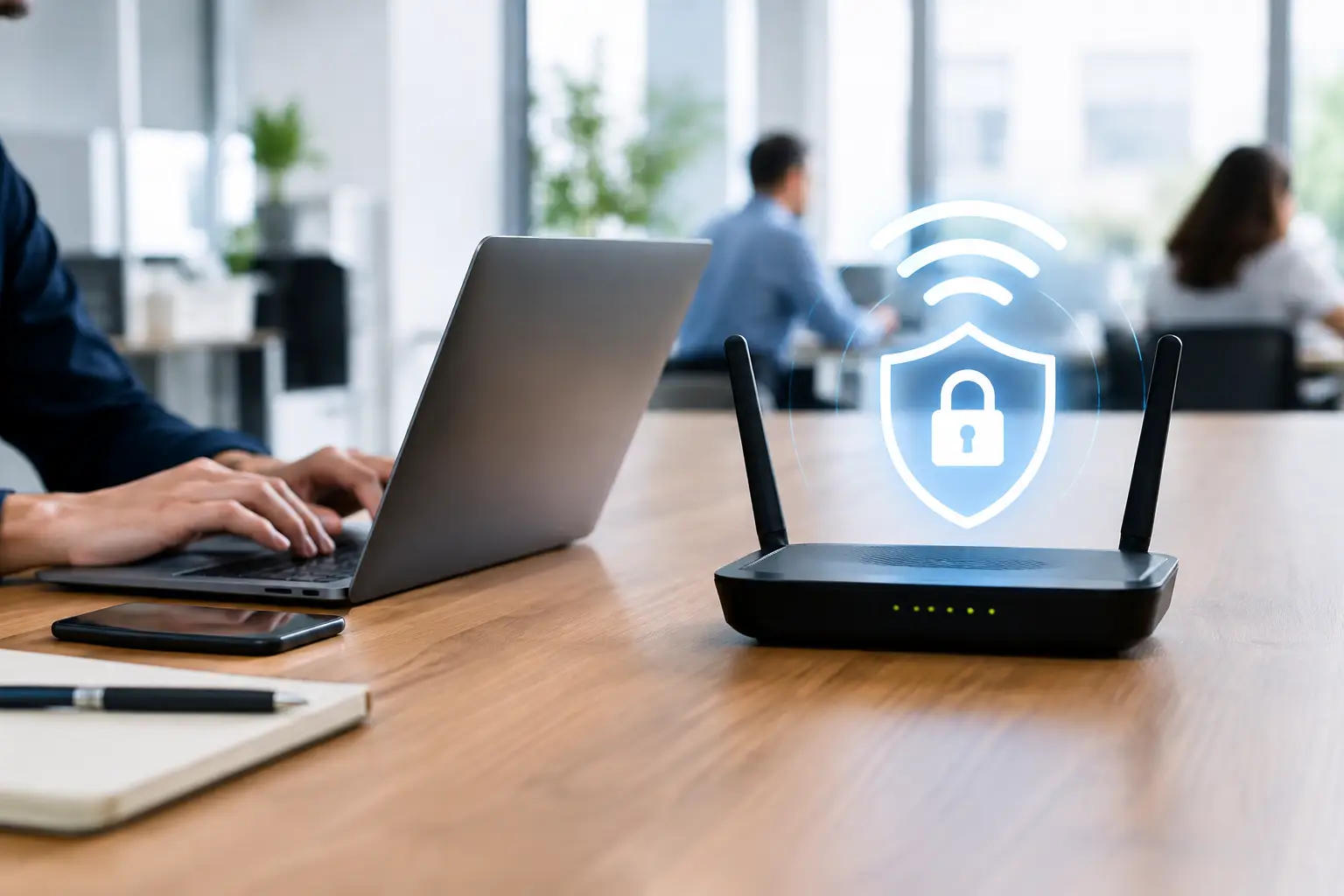
A WiFi password written on a sticky note behind the front desk can become a business risk faster than most offices expect. Former employees may still have access, visitors may be using the same network as staff, and an outdated router can leave a door open to attackers. Knowing how to secure office WiFi is not about making work harder. It is about protecting the systems your team relies on every day, from cloud applications and shared files to phones, payment terminals, and customer records.
For a small or midsize business, WiFi security should support daily operations rather than interrupt them. The right setup gives employees reliable access, keeps guests separated, and gives management confidence that the network is being monitored and maintained.
Start With the Router and Firewall
Your wireless network is only as secure as the equipment controlling it. Many businesses continue using the internet provider’s basic router long after their needs have outgrown it. That equipment may work for a handful of devices, but it often lacks the visibility, capacity, and security controls a growing office needs.
Use business-grade networking equipment with a properly configured firewall. The firewall helps control which traffic can enter and leave your network, while the wireless access points connect staff devices safely. For offices with cloud phones, point-of-sale systems, or many mobile devices, this foundation matters even more. An unstable or poorly configured network can affect customer calls, transaction processing, and staff productivity.
Keep the router, firewall, and access points current with manufacturer firmware updates. These updates often correct known security weaknesses. Delaying them can leave your business exposed to vulnerabilities that attackers already understand.
If no one internally owns this task, it is worth assigning it to a managed IT partner. Updates should be planned, documented, and tested where appropriate, not performed only after a problem occurs.
Use Strong Encryption and Retire Old Standards
A network name and password alone do not make office WiFi secure. The encryption standard matters. Configure wireless networks to use WPA3 whenever your devices support it. WPA2 with AES encryption remains acceptable for older equipment, but older options such as WEP, WPA, and WPA2 with TKIP should not be used.
Older encryption standards are easier to compromise and should not remain active simply for convenience. If an older printer, scanner, or specialty device cannot connect to a secure network, evaluate whether it belongs on a separate, restricted network or needs replacement.
Your WiFi password should be long, unique, and difficult to guess. Avoid company names, addresses, seasonal phrases, or anything employees could easily share verbally. A passphrase made of several unrelated words is easier for authorized staff to enter and harder for an attacker to crack.
Change wireless credentials when an employee with access leaves the organization, when a device is lost, or when there is any concern that the password has been shared beyond the team. For a larger office, individual user authentication is better than one shared password because access can be removed for one person without disrupting everyone else.
Separate Employee, Guest, and Business-Critical Devices
One of the most practical answers to how to secure office WiFi is network separation. Not every device needs the same level of access, and treating every connection as equal creates unnecessary risk.
Employees need access to the applications, printers, shared files, and cloud services required for their roles. Guests usually need internet access only. Smart TVs, security cameras, thermostats, and similar connected devices may need limited connectivity but should not be able to reach sensitive business systems.
Create separate networks for employee devices, guests, and internet-connected devices. Guest WiFi should be isolated so visitors cannot browse shared folders, discover printers, or communicate with staff computers. This is particularly important for professional offices, accounting firms, retailers, and nonprofits that handle confidential client, donor, financial, or payment information.
Segmentation also limits the damage if one device is compromised. A phishing email, infected laptop, or vulnerable camera should not provide an easy path to every system in the office. The exact design depends on your equipment and workflow, but the principle is simple: give each device only the access it needs.
Protect Access Beyond the WiFi Password
Wireless security is not complete if anyone with the password can connect an unmanaged personal device and reach internal resources. Your office needs clear access rules.
Start by maintaining an accurate inventory of computers, phones, tablets, printers, access points, and other connected devices. If you do not know what is on the network, you cannot reliably protect it. Review that inventory regularly and investigate unfamiliar devices promptly.
Use multi-factor authentication for cloud email, file storage, financial systems, remote access, and administrative accounts. Multi-factor authentication does not replace WiFi security, but it can prevent a stolen password from becoming a much larger incident.
Administrative access to network equipment also deserves special attention. Default administrator usernames and passwords must be changed immediately. Only authorized personnel should be able to alter firewall rules, create wireless networks, or view network settings. Those credentials should be stored securely, not saved in an open spreadsheet or shared through text messages.
Make Remote Work a Controlled Connection
Remote access is useful, but it expands the number of places from which business systems can be reached. Employees working from home, traveling, or using a mobile hotspot should follow clear security expectations.
Avoid allowing direct, unrestricted access to office systems from the public internet. Use secure remote access tools, require multi-factor authentication, and limit access based on the employee’s role. A team member who only needs a cloud application should not automatically have access to every file or device on the office network.
Public WiFi deserves extra caution. Staff should not use an open hotel, airport, or coffee shop network to access sensitive systems without approved protections in place. A simple policy and a short training conversation can prevent risky workarounds before they become a security event.
Monitor the Network Before a Small Issue Spreads
Most WiFi problems do not announce themselves clearly. The first warning may be slow performance, repeated disconnections, unfamiliar devices, or a sudden increase in data use. By the time a business learns that an unauthorized device has been present for weeks, the investigation can be far more difficult.
Continuous monitoring helps identify outages, device failures, unusual activity, and performance issues early. It also helps distinguish between an internet provider outage, a failing access point, and a configuration problem. That clarity saves time when employees are unable to work or customers cannot reach your office.
Logs should be retained and reviewed as part of your security process. They can be valuable during an incident, especially when determining which device connected, what it accessed, and when activity began. Small businesses do not need to become network experts, but they do need someone accountable for watching the environment.
Train Staff Without Turning Security Into a Burden
Your employees are part of the security plan. They do not need a technical lecture, but they should know what to do when they see an unfamiliar network prompt, a suspicious email, or a device asking for credentials.
Make expectations practical. Employees should use the approved office network, avoid sharing passwords, report lost devices quickly, and ask before connecting personal equipment that could access business resources. Reception and office management staff should also know how to direct visitors to guest WiFi rather than sharing employee credentials.
Short, regular reminders work better than a once-a-year policy document. Security training should connect directly to the work people perform: protecting client information, keeping payment systems available, and preventing disruptions that affect customers.
Build WiFi Security Into Your Business Continuity Plan
A secure network should also be a dependable network. Document your WiFi setup, network names, equipment locations, access procedures, and recovery contacts. Keep that information protected, but make sure the right people can reach it during an outage or emergency.
Test how your office would respond if the internet connection failed, an access point stopped working, or suspicious activity was detected. The goal is not to expect the worst every day. It is to avoid confusion when time matters.
For businesses in Pensacola and Milton, a local technology partner can provide the ongoing attention that internal teams often do not have time to deliver. InfoTech CFL helps organizations manage network security, monitoring, maintenance, and communications under one accountable support relationship.
Office WiFi should fade into the background when it is working correctly. With clear access controls, separated networks, current equipment, and someone watching for trouble, your team can focus on serving customers instead of wondering whether the network is putting the business at risk.
No responses yet